
Share this article
Introduction
The topic for the first material on this blog is not accidental. Thinking about the next articles I would like to publish on this blog, I have the impression that the ability to create BC test environments is absolutely crucial and particularly useful. The point is to create your own test environments in which each of you could independently and freely test specific functions that I will discuss on the blog.
What you will find here and what you will not…
In this article, I will discuss test environments that can be created completely outside the customer’s production tenants or possibly when the customer does not have a production tenant yet (I will also discuss those). In this article, however, I will NOT discuss the so-called sandboxes or test databases, which can be created in the production environment already during the implementation of BC for the end customer. More on that another time :).
After reading the article…
After reading this article, as a consultant or programmer, you will be able to choose the type of test environment for every occasion and you will know how to create it. However, as a client, you will know what types of test environments exist, what are the capabilities of each of them and whether you are able to create a test environment yourself for your own needs to check a new version of BC or functionality in the BC standard.
Test environments types
There are at least several ways to create a BC test environment because there are also several types of test environments that can be created. In this article, I will discuss the most popular of them. Types of test environments differ significantly, so it is worth knowing these differences in order to select the type of environment that suits your needs and expectations.
| Test environment type | BC enrollment type | Enrollment location | Environment lifespan |
|---|---|---|---|
| ¶ BC trial version | online | BC environment on Azure in the customer’s existing or new tenant | No limit with Cronus company data OR 30 days with your own company data |
| ¶ CDX demo environment | online | Complete Microsoft demo environment on Azure in the fictitious tenant | 90 days or 1 year with Cronus company data OR 30 days with your own company data |
| ¶ Docker container | sandbox (online), on-premises | Locally on computer | No limit with demo license and Cronus company data or Partner license |
| ¶ DVD image installation | on-premises | Locally on computer | No limit with demo license and Cronus company data or Partner license |
BC trial version
Trial registration form
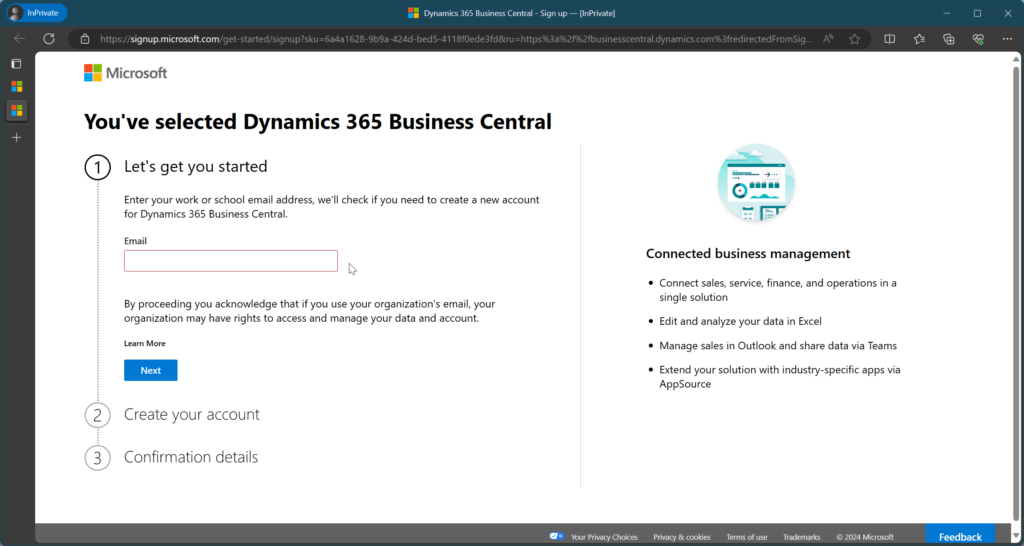
To create a test environment by creating BC trial, complete the registration form on the website always available at: aka.ms/BCTrial ↗ or from the Business Central home page ↗, click on the Try it for free button in the main banner (as of the date of publication of the article).
E-mail address requirements
To create BC trial, you should provide administrator’s e-mail address in the registration form. And here’s a note – it must be a business/company e-mail address. It is not possible to enter the address provided by consumer mailing or telecommunications services, i.e. hotmail.com, outlook.com, gmail.com, yahoo.com, aol.com, icloud.com, etc.
Why such a requirement? Well, when creating a BC environment for the trial version, it will be created in an existing Microsoft 365 tenant assigned to the domain in which the administrator’s e-mail address exists. If a tenant for the domain does not exist yet, it will be automatically created when creating the BC test environment for the trial version.
Who is it for
As you can see, the BC trial version is an option that should be used when, as a Partner, we want to create a test environment for a specific customer (e.g. for whom we are currently conducting pre-sales activities or starting implementation activities) by providing an e-mail address in his domain, or as a customer we want to create a test environment ourselves for our own company to check BC. After testing, this type of environment may be converted with the Partner’s participation into the customer’s target production environment or may be canceled… or it will expire on its own.
Lifespan and conditions of use
We can only create a trial version once for a given tenant. If a BC trial version is not used for 45 days in a row, the trial version will expire and the BC tenant will be automatically deleted. If customer decides to upgrade from the trial version to a paid version before the trial expires, the 45-day limit will no longer apply.
If, while using the trial version, we use the system only in the context of the Cronus demo company and with its limitations (and we log in at least once every 45 days), the test environment will remain active as long as it is used. However, if we set up our own company, the 30-day trial period will start from the moment it is created in BC.
Extending the trial period
Microsoft is aware that 30 days may sometimes be too short a period of time in which a customer should make a decision about choosing a system. Therefore, the customer can extend the trial period by another 30 days on his own. Just before the upcoming expiry of the basic period, a message is displayed to users after logging in to BC, containing a link to the guide to Extending the trial period. By clicking on the link, another 30-day trial period is started. The extension of the trial period by the customer himself is a one-time thing.
It is also possible to extend the trial period for a second time for another 30 days, but this can only be done by the Partner, to whom the customer should ask such a request, and it is also a one-off.
Regional restrictions
This is not the end of requirements and restrictions. A BC test environment for a trial version can only be created in selected markets. Unfortunately for me, Poland is not among them, which we will be notified about immediately after entering the e-mail address or later when selecting the Country or region of our account and organization (Poland is not on the selection list). To create a BC trial version for a Polish customer (or a customer from any other region that is not supported by trial registration form), the local Partner must apply directly to the CSP license provider.

Regional restrictions workaround
When, as a Partner from non-supported trial region, you want to create a trial environment for a customer from a country or region where BC trial registration IS available, you should select the Country or region consistent with the customer’s organization – i.e. in which country/region the customer has a registered tenant. If this does not help, you can use a workaround by changing the preferred language for displaying websites in your web browser settings. When you change your preferred language, e.g. to en-US, the form will allow you to create a BC trial environment.
Sandbox performance
Sandbox environments, and BC trial is just that, offer lower performance than production BC environments. This happens because sandboxes run on a different performance tier in Azure than production environments.
The BC trial version is therefore not suitable for testing the performance of solutions in BC or BC itself. In order to perform performance testing on BC online, a dedicated production environment must be created, only this will ensure exactly the same performance that users can later experience in a real production environment.
External resources
The test environment for the BC online trial version is described in detail in the BC documentation under Get started → Try → Sign up for a free Dynamics 365 Business Central trial ↗. There are also sections for questions and answers around BC trial version, solving registration problems, extending the trial period and canceling the trial version.
On the performance of BC online sandbox environments, it is worth reading Manage environments ¶ Sandbox environments ↗ and Performance in Business Central Online ¶ Performance on sandbox environments ↗.
CDX demo environment
What is CDX
Microsoft CDX (Microsoft Customer Digital Experiences) is a service that allows you to create demonstration environments to present the capabilities of Microsoft business software to end customers. CDX is available at: cdx.transform.microsoft.com ↗. Due to this purpose of the service, the ability to create an environment in this option is only available to Partners.
However, this method has significant advantages over others. In the created environment, we will have access not only to BC, but to the entire range of Microsoft services. A separate fictitious Azure tenant is created (without active subscription to Azure services, but you can use a free subscription $200 worth) for a fictitious company called Contoso, a set of fictitious users in the tenant, e-mail accounts for these users in Exchange Online, licenses Office E5, some Power Platform licenses and more.
Once you have such a prepared tenant and an administrator account has been made available, you must use it to register the trial version of Business Central (described in the chapter above ¶ BC trial version) to receive Business Central licenses for the trial version (with Premium license options). In terms of BC itself, the possibilities (and limitations) are exactly the same as when registering a trial version of BC for the customer (described in the chapter above ¶ BC trial version), but here not on the actual customer’s tenant, but on a fictitious and fully equipped tenant.
Who is it for
This is therefore a perfect choice for Partners who need Business Central in a fully configured Microsoft environment to be able to prepare a customer-tailored demo and present to customers (or rather future customers) the wide capabilities of BC, including all functionalities of integration with other Microsoft services (Edit in Excel, Outlook Add-in, Teams, Power BI, Power Automate, Power Apps, Power Pages, OneDrive, Cash Flow Forecasts and other ML features in BC, AI features using Copilot, etc.).
Installing extensions
Similarly to the production online BC environments, you can also install our own PTE extensions on demo environments created on CDX by importing the .app package, as well as ISV extensions directly from the Microsoft AppSource ↗ store. However, you will not be able to install ISV extensions for which you have a so-called “runtime app” (an application compiled into an .app package).
Beware of extensions without free trial / get it now
Therefore, it is a bit difficult to install an ISV extension on the CDX demo environment, which is not distributed in AppSource as free (Get it now) or under free trial basis (instead, there is a button on the AppSource application card to leave contact information – Contact me). This method of distribution on AppSource may possibly be reasonable for applications that require special attention, for example, applications that require additional external setup to be able to run or applications that should not be used without appropriate guidance from the vendor. However, for all other cases, ISVs should not use this method of listing applications in AppSource.
For Partners in Poland who want to create a Polish demonstration environment, this is particularly painful, because available Polish localization extensions, i.e. Polish Localization (from IT.integro) or Localization for Poland (from Companial) are distributed in this way.
To install such applications anyway, you need to get the application ID specified in the application manifest (in the app.json file) – it is also visible in the AppSource application card’s URL – and then use it while installing the application with the admin center API (MS Learn ↗) or even more easily by running a well-prepared direct URL (MS Learn ↗):
https://businesscentral.dynamics.com/<tenant-id>/?noSignUpCheck=1&filter=%27ID%27%20IS%20%27<app-id>%27&page=2503where <tenant-id> should be replaced with the CDX environment tenant ID on which we want to install the application, and <app-id> with the AppSource application ID of the application we want to install.
Lifespan and conditions of use
Each user (necessarily associated with the Partner’s account) can create up to 5 simultaneous demo environments with a lifespan of 90 days and 1 demo environment with a lifespan of 1 year. If you need to create another environment, delete one of the previous ones.
Update: starting in April 2024, Microsoft has changed (limited) the environment creation limits for Partners up to only 1 simultaneous demo environment with a lifespan of 90 days 😞.
Read more about this:
Regardless of the lifespan of the demo environment, the lifespan of BC itself in this environment is governed by its own rules, the same as for the trial version (see BC trial version ¶ Lifespan and conditions of use above).
How to create an environment
When creating a demo environment in CDX, there are a few options you should pay attention to and things to keep in mind when running BC on this environment. I describe them in a separate guide: How to create a demonstration environment on CDX.
Docker container
Technical background
If you are not interested in the technical background, you do not want to understand what exactly containers are, you more or less know what it is about, but you just want to find out what benefits containers bring in the context of BC, skip the section below ¶ Who is it for.
What are containers?
To simplify slightly, it is a way to isolate an application from the main host (the operating system of our local computer) while allowing the isolated application to use the hardware resources of the host and its operating system.
In the past, when we wanted to, for example, install NAV locally for testing or demo preparation, but we did not want to burden our own local system with the installation of SQL Server, NAS, .NET components, etc., we had the option of isolating such an environment on a virtual machine. It was necessary to install a virtualizer (hypervisor), i.e. VirtualBox, VMware Player, Microsoft Hyper-V or other, create a new virtual machine with separate/dedicated resources, install the operating system on it and the target software on it. Apart from the very large amount of work and time that we had to spent, the problem with VMs was also that they were huge – after all, they contained an entire separate operating system, their own set of drivers, and at the end all the libraries and components needed for NAV being able to work and the application itself.
Containers are the answer to the above problems of virtual machines – each container contains only what is actually needed by the application, and our local system does not have it. It uses the host operating system, but at the same time does not affect it in any way (does not install packages, does not change registries). Therefore, the container is much lighter in terms of disk space consumption, much lighter in terms of the resources it needs to run (there is no need to run another full system in the local system, as in the case of a VM), and also non-invasive in relation to the operating system. We also do not have to spend time on installing the operating system, components, or even the application itself. An additional advantage is that the common parts of sister containers, i.e. libraries, components needed for the application to run on containers of the same type, do not have to be duplicated in each container and can be shared!
Who is it for
The ability to create a BC test environment on your own computer will be particularly attractive to… actually everyone. For anyone who, for example, needs to test core functionalities (Base Application or System Application) in the newest version, who wants to set up their own development environment for their own needs (e.g., learning AL programming) or for the implementation project, or who just wants to “check something in the standard,” and additionally wants to check it on a specific version or specific build.
As for the last part… it happens that consultants need to check the specific behavior of the system (in the standard or using a specific dedicated PTE or ISV extension) necessarily on the same version as the client currently has (with accuracy to the build number), but for some reason, this cannot be done in the production environment on a copy of the company, test database or sandbox.
Moreover! In addition to the ability to create containers with BC in any version, we also have the option to create a container with Dynamics NAV in the range of any build version from NAV 2016 to NAV 2018.
Restrictions
However, you should remember that BC in a Docker container is just BC and nothing more. Logging usually with the NavUserPassword method, eventual self-signed certificate for HTTPS communication, the ability to install your own PTE extensions, the ability to install ISV extensions, but only those for which we have a runtime app (application compiled into an .app package).
The limitations comes from the fact that everything works entirely locally, without connection to any Microsoft tenant or Azure. Therefore, we are unable to run some system functions on containerized BC (including, for example, parts of integrations with other Microsoft services or products that require an on-line cloud operation), but in other cases, this independence and locality can also be an advantage…
A consultant going to the customer and working on-site, can take a pre-configured BC application or personalized demo on their laptop with him/her without worrying about the availability and stability of the internet connection, availability of remote desktops on company servers, or the state of Microsoft services (although that should not be a concern – during Directions EMEA 2023, Microsoft announced that the global availability time of the BC online service in the last quarter was 99.98%). The container environment is entirely independent of them. A programmer can work with AL code wherever they are, even where there is no stable internet access or even mobile coverage.
Container Time to Start
BC in a container is the fastest and least invasive way to set up a local test environment. Thanks to the advantages of containerization, the impact of the installation on our operating system is minimal.
The first working container with BC can be created in about 30-90 minutes (depending on the internet speed), while each subsequent one will be created much faster. With subsequent containers, Docker will only need to download the missing elements, because common elements (e.g., SQL Server) that is already downloaded will be shared and used. Therefore, the startup time of subsequent BC containers can drop to as little as several minutes.
Only the resources of our computer (especially disk space and the amount of available RAM) can limit the number of containers we can have running in our system at one time.
Updates with Docker Desktop
To create containers on our Windows-based computer, it is necessary to install the Docker Desktop application which will work as a control panel for our containers. Docker Desktop maintains the state of the containers; it is also the place from which we can manage them: start, restart, stop, delete, read logs, etc.
Until recently, each update of the application (and these come out quite often) was associated with the risk that all existing containers could simply stop running (with no effective method of resuscitation). Fortunately, the situation has stabilized for some time now, and the problem occurs occasionally. My containers have been running stably for several months, but just in case, I try not to update the Docker Desktop application unless I have to… (just in case).
Beware Windows updates (upgrades)
It should be remembered that what you should NOT do is update (or rather upgrade) the host operating system version – that is, our Windows operating system on the computer.
And I’m not talking about small individual system updates or hotfixes that are released quite often – those can be installed (and those concerning security even should be) and you can stay calm as these updates will not break your containers.
The problem is cumulative updates, released by Microsoft once or rarely twice a year, which upgrade the Windows version. As of writing this article, the current version of Windows 10 is 22H2 ↗, while the current version of Windows 11 is 23H2 ↗. Upgrading to a newer version of Windows will cause the container environment elements (installed at the time of creating the container under a specific system version) to no longer fit, resulting in containers simply not starting.
How to create a BC container
At first glance, the entire installation process may seem complicated – first the installation of the Docker Desktop application, where we must first meet quite specific requirements, then the console installation of the BC container using some PowerShell scripts using a separate module… In fact, it is not as simple as we would like it to be, but after creating a few containers you can become proficient in it, or even prepare yourself a ready-made template – a script that you will use every time, which will simplify the process to an absolute minimum.
In a separate guide, I describe step by step how to run BC in a container: How to run BC in a Docker container.
Installation from DVD image
The last method that I want to describe is the most classic method of installing the system (the on-premises version) directly from the Business Central installation disc. The DVD image can be downloaded from Microsoft’s resources (no Partner account login required).
Among the installation customization options is the ability to install SQL Server (in the Express version) along with a demo database (with fictional Cronus company data) and a demo license.
Who is it for
Definitely for the administrator who needs to install BC on-premises on the client’s server infrastructure for the target production, test, or development environment. But is this a good option for a local test environment for personal needs…? In my opinion, no.
Installing all the components for the BC application server (including, SQL Server, IIS and many more) on your own operating system, which you use daily, is like shooting yourself in the foot or… putting a stick in the spokes while riding a bike. Unless, of course, you know exactly what you are doing, can allocate memory to applications, and control system services.
Such an installation can quickly consume (devour) our resources, especially RAM, but also disk space and will occupy our processor for long periods. Even if you decide to uninstall everything (or rather all components of everything one by one), many changes will remain in the system registry.
So is there a way to install classically, but in a non-invasive way for the system? Yes, a virtual machine. However, in terms of resource optimization, installation time, and ease of use, virtual machines give it’s way to containers. But about that… I already wrote above ¶ What are containers.
Conclusion
Have you made it this far? You deserve applause just for that! ;) I hope that despite its length, the article provided you with practical knowledge and you now know the ways to create a BC environment for test or demonstration purposes.
If you want to delve deeper into the topic, check out the guides where I discuss step-by-step how to create a demonstration environment on CDX and how to run BC in a container on your computer.
Thanks! 🙌

